

Key Features | UIs & wireframe generator, Interactive prototype builder, Flowchart generator, Website cloning AI, Figma AI design agent (Nodey), Design-to-code, Predictive heatmaps |
Ratings | Trustpilot[2]: 3.9/5, G2[3]: 4.2/5, Capterra[4]: 4.5/5 |
Pros | Manual edits free, Figma-native, heatmaps built-in |
Cons | Credit-heavy, inconsistent multi-screen output, slow support |
Free Trial | 45 one-time credits, up to 7 screens, no card required |
Paid Plans | Standard $7.49/mo · Pro $11.49/mo · Teams $31/user/mo (all annual) |
Alternatives |
What is UXPilot AI?
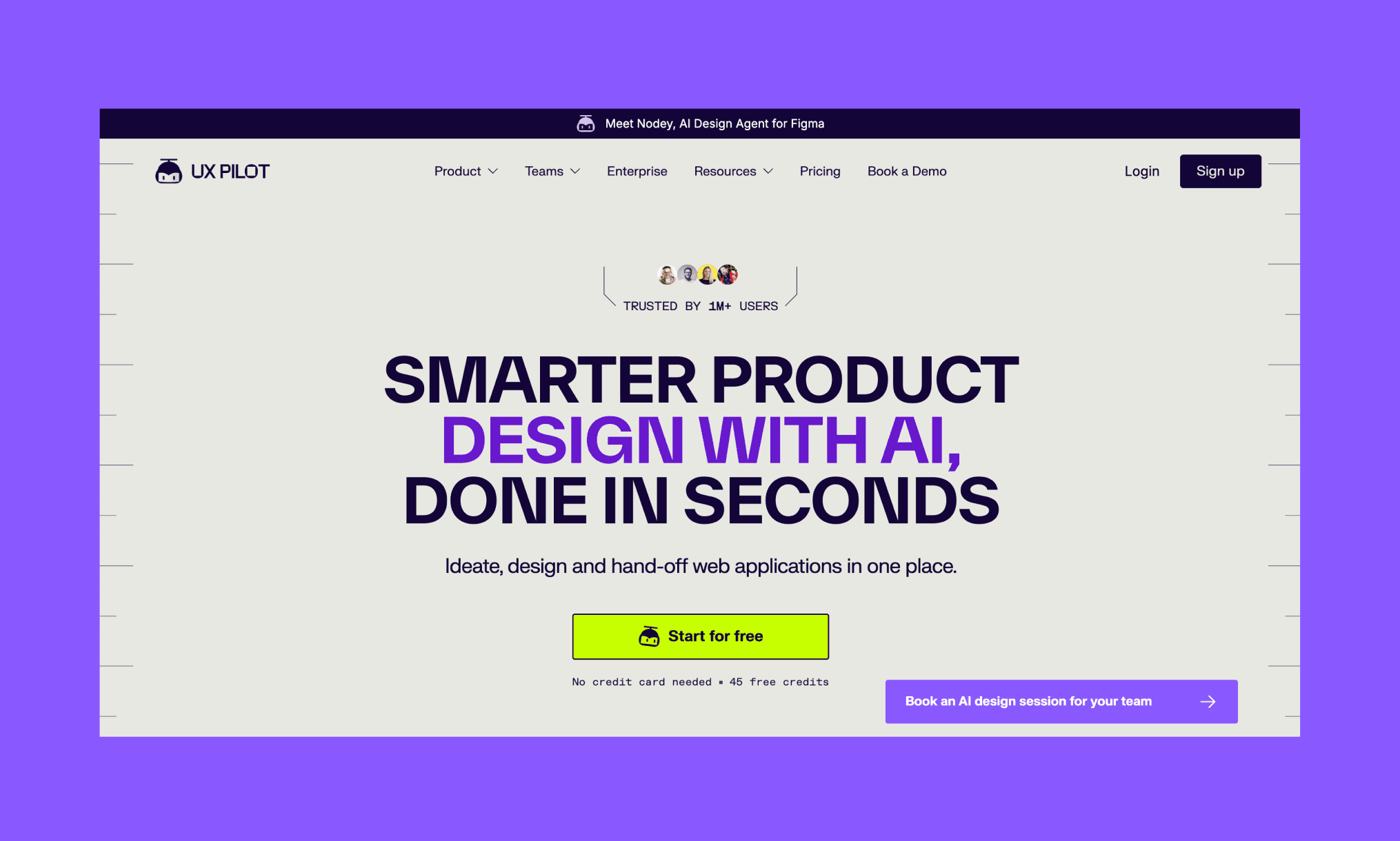
UXPilot is an AI-powered UI/UX design tool. It lets you generate wireframes, high-fidelity screens from a text or image prompt, and is deeply integrated with the Figma design system. It also doubles up as a design-to-code tool with its image-to-HTML generation capabilities.
UXPilot was founded by Adam Fard in 2023, and as of 2026 boasts over 1M+ users.
What is the use of UXPilot?
UXPilot has various use cases, but at the core lies the usage to turn prompts into structured UI screens: whether lo-fi wireframes or hi-fi app interface. Along with Figma export, code handoff, and predictive heatmaps for UX research.
Who is UXPilot best for?
It is ideal for product managers, UX designers, and founders who want fast design output, without a full design team.
Generate UI with AI for free >
How to use UXPilot
Step 1: Sign up & be introduced to Nodey
The UXPilot login (or sign up) is pretty straightforward. No credit card required. And right as you land, you are served with a banner to use their latest Figma plugin called Nodey.
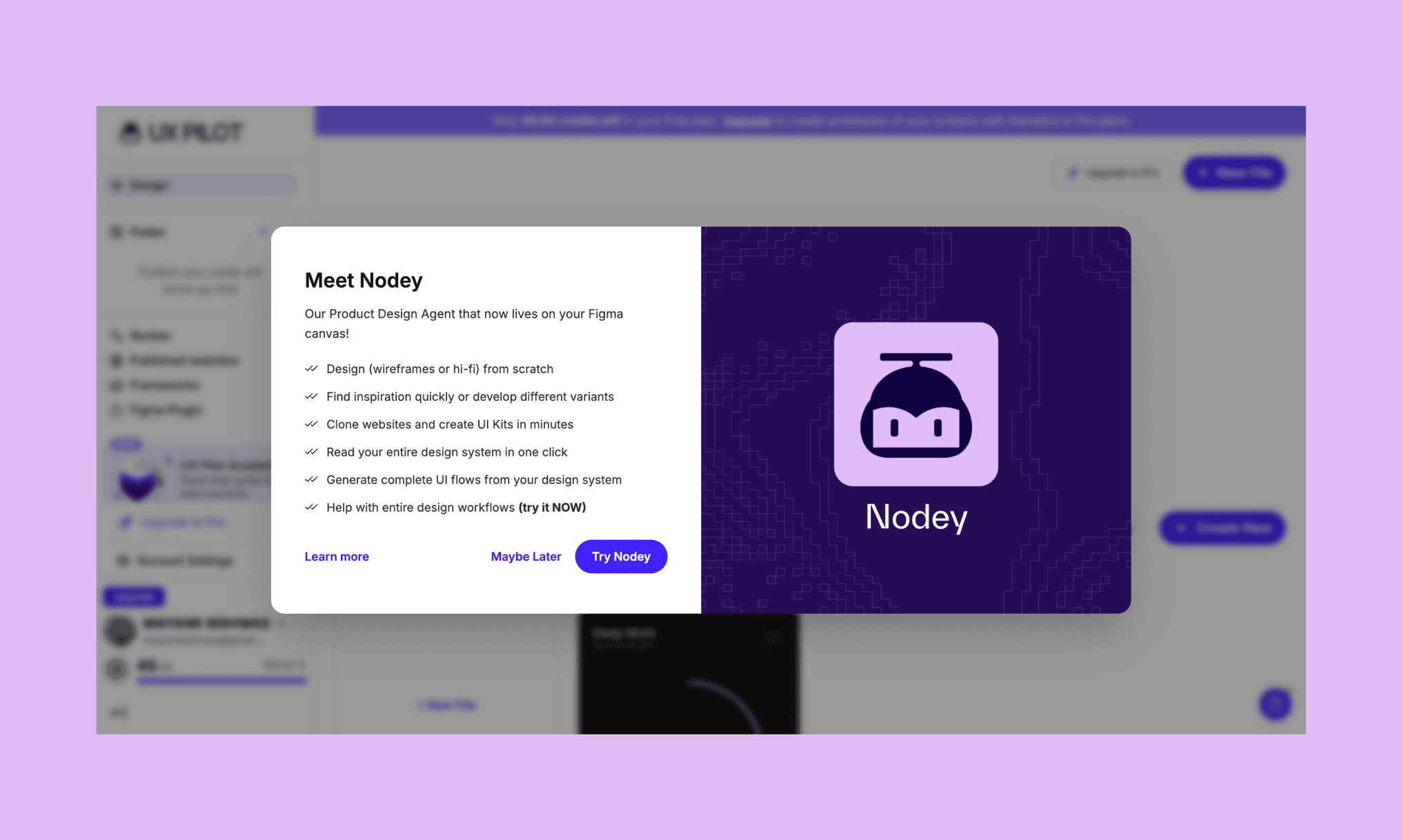
I decided to check that out later. And rather start with testing the core proposition: Text-to-UI generation with UXPilot. Gave it a prompt to build a solo workspace booking app called DeskNest (along the lines of Airbnb UI).
"Design a 4-screen mobile app called DeskNest for booking solo home workspaces. Include: a Home/Discover screen with featured listings, a Listing Detail screen with photos and booking options, a Bookings screen showing upcoming and past reservations, and a Profile screen with reviews and preferences. Warm, minimal style with earthy tones."
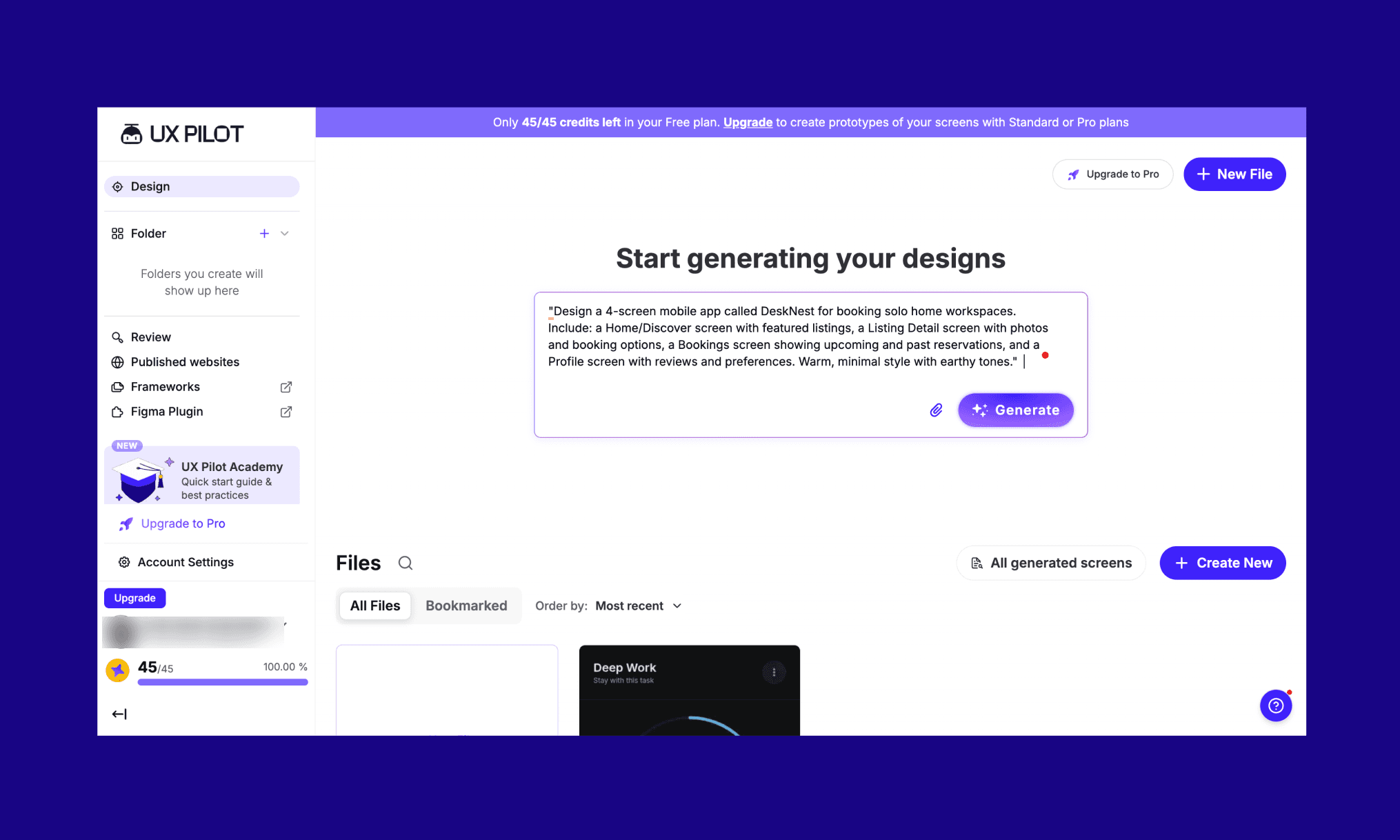
One thing that popped out to me on the UXPilot dashboard is their credit count. Usually, AI UX research tools used by PMs try to put it out of sight, but not here. They show it up top and front.
Step 2: Review the UI generated by UXpilot
As soon as the prompt was input, it took me to its design canvas. I was expecting to see its AI UI agent in action, both in chat and visually, to process my request but was instead greeted with tool-tips to use the app. Which would have been fine, if not for being bombarded by them along with another modal to promote Nodey.
Clicked ‘X’ through them all like skipping YouTube ads, but then what I got on the screen was more disappointing.
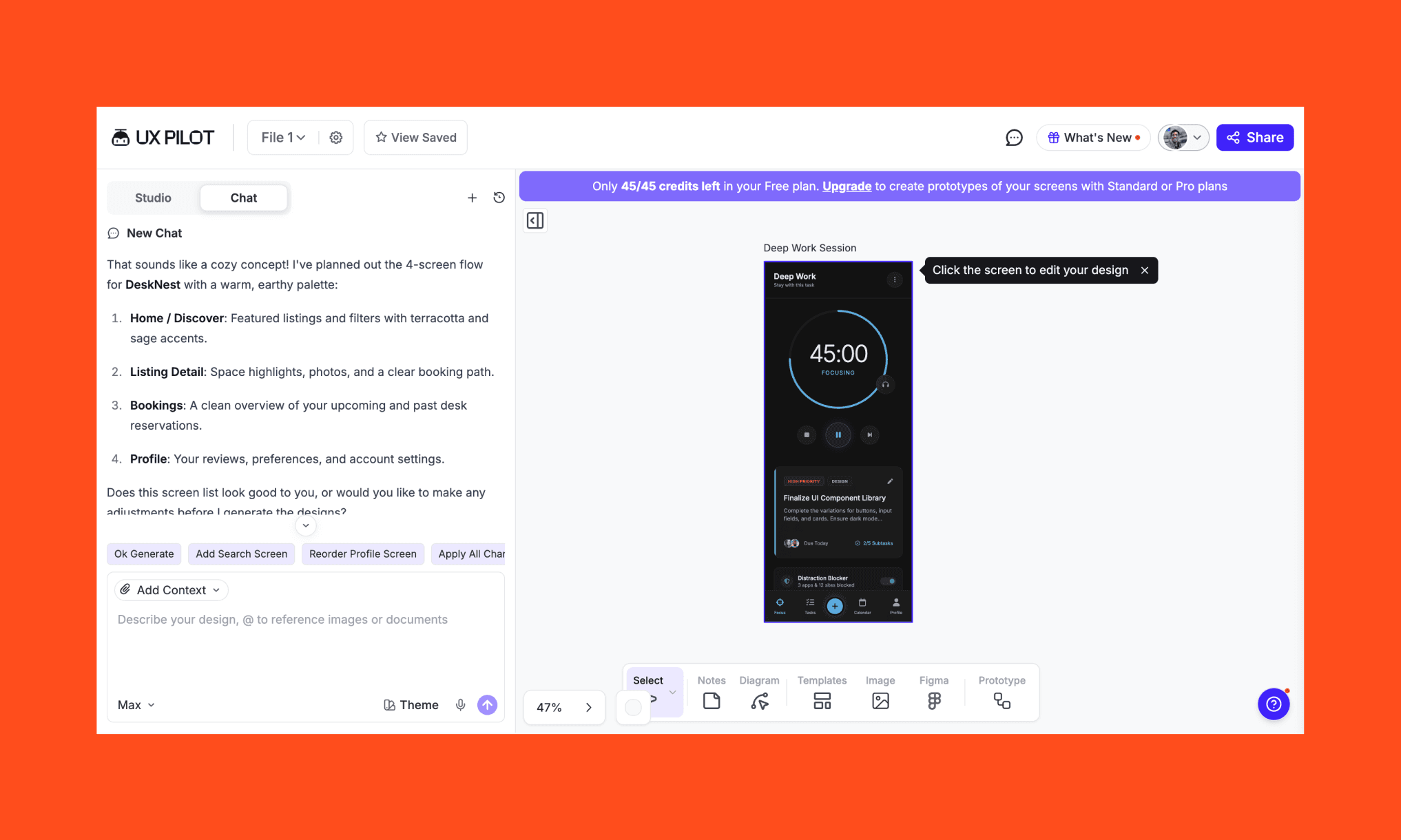
I saw an older app UI that I had built with it on the canvas. In contrast, the chatbox talked about my request app, DeskNest. It was confusing to say the least.
Anyways, I figured it could be a glitch, and let its agent know via chat: ‘Ok Generate’.
Thankfully, this time, the older app screen disappeared, and the 4 screens requested were shown being designed. It took ~10 minutes, and only after 3 screens, all my 45 free credits were consumed.
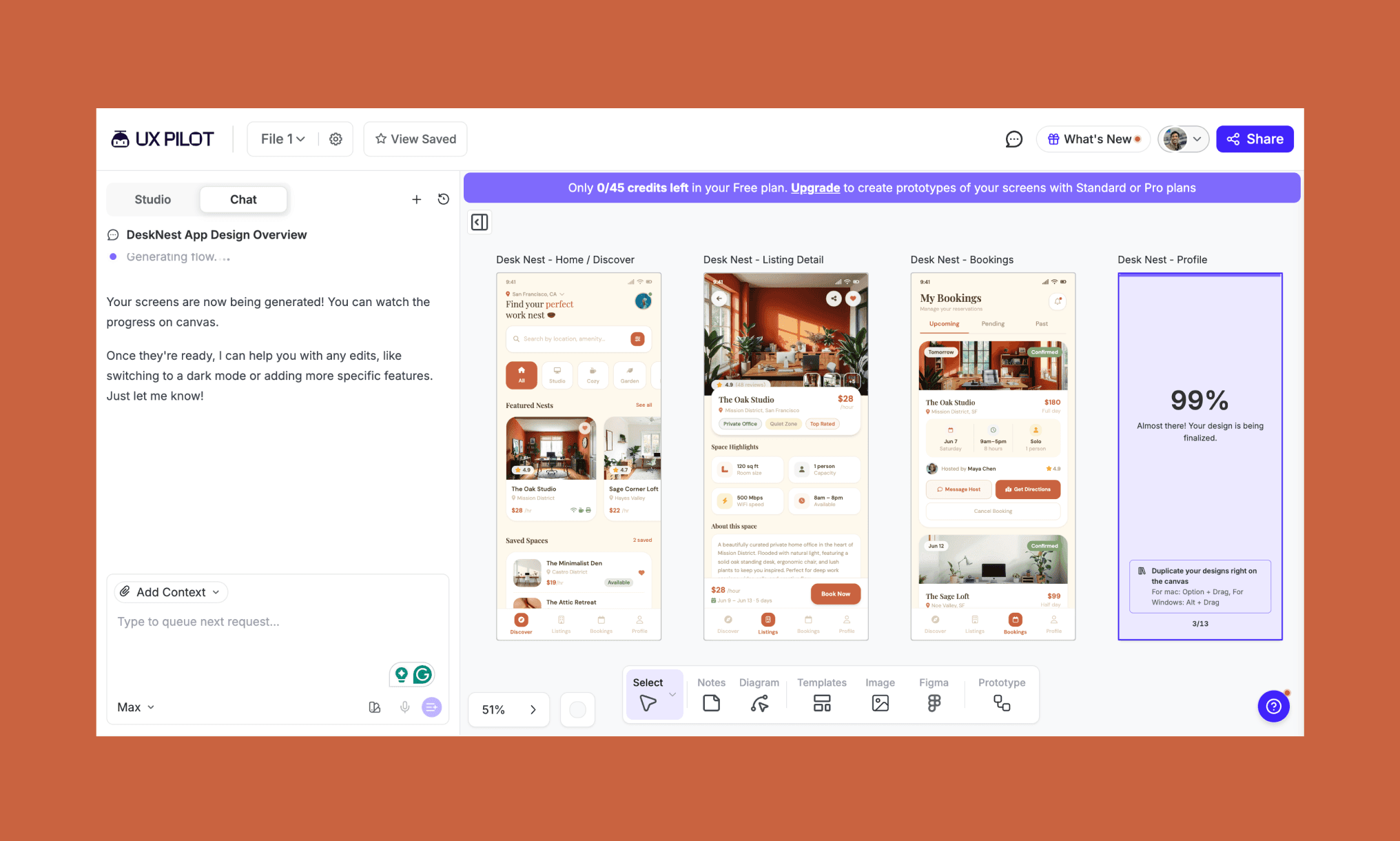
The style and the element of the UI generated by UXpilot is impressive though. It included everything I asked for and then some.
At this stage, I couldn’t help but compare the output speed and quality of Banani AI. Which processed the same prompt in ~3-4 minutes and used only 12 credits.
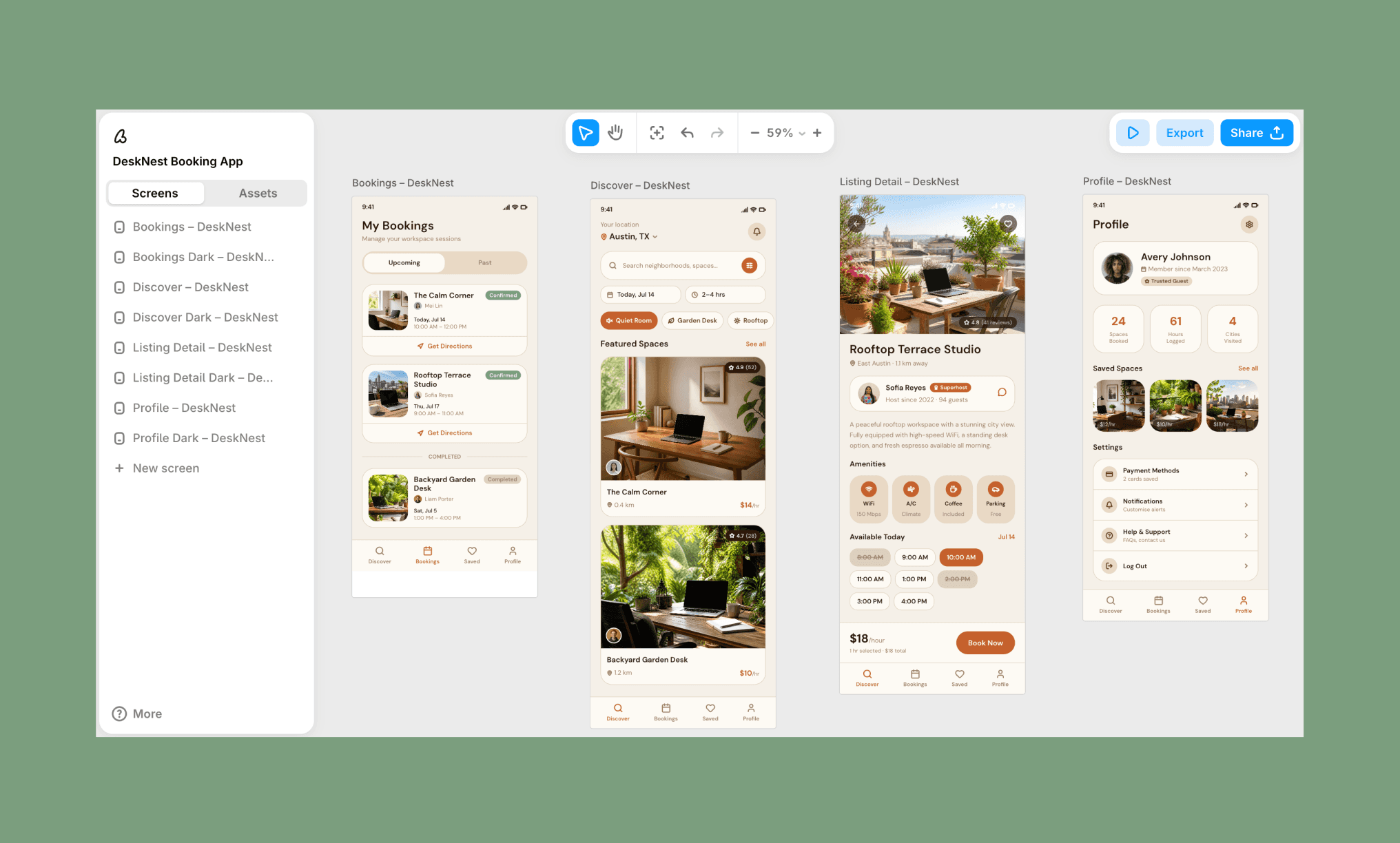
You can check out Banani’s output here and even copy & edit with AI – for free!
Step 3: Making manual edits
Having run out of free credits in UXPilot, I decided to test the editing of the UI screens using their manual edit feature. I have always found this to be handy and more economical in the world of credit-guzzling AI prototyping tools.
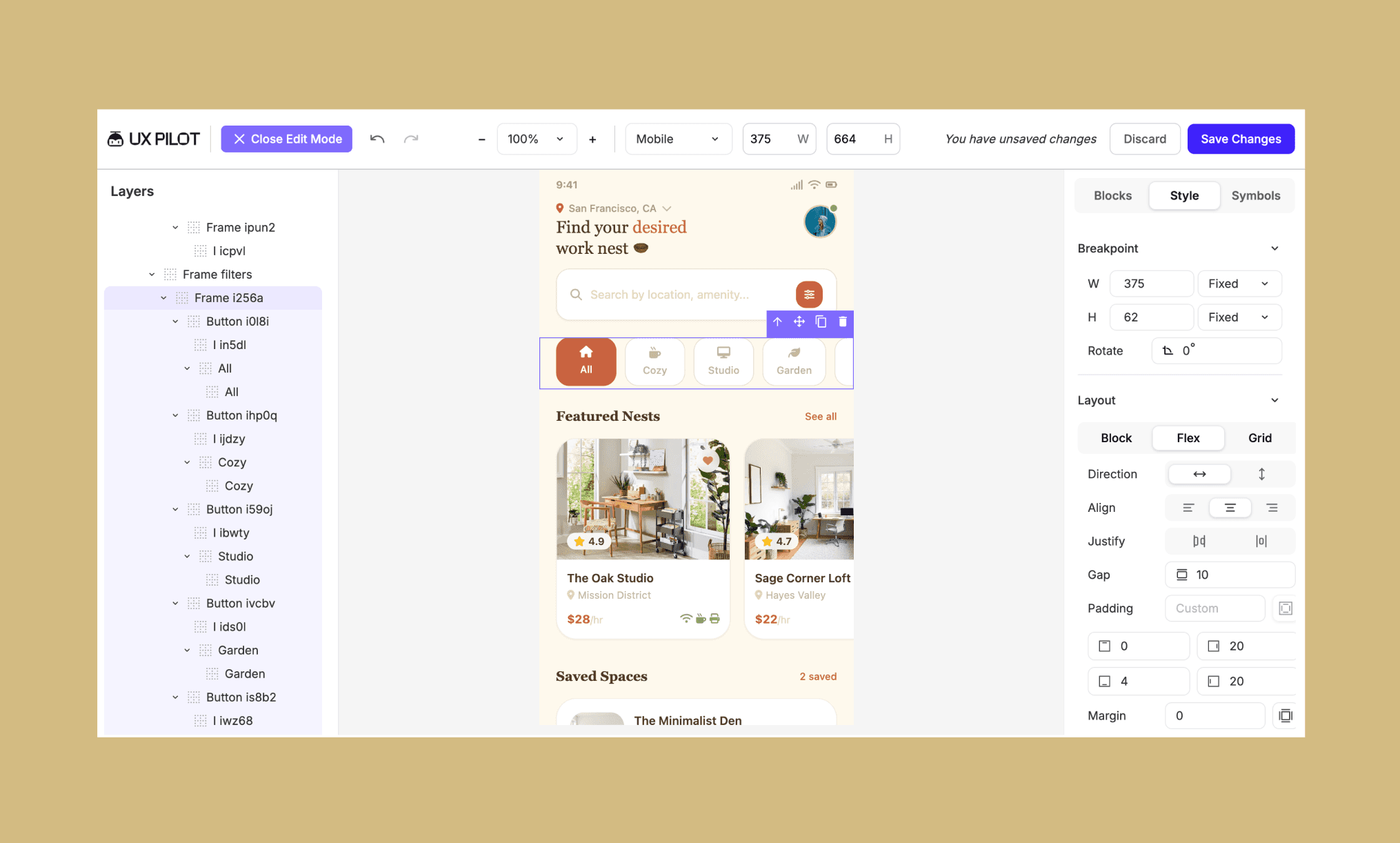
Here it went all smooth. I changed a word in the copy, swapped one of the icons/buttons, and replaced an image. Everything felt intuitive, as if editing a Figma design file.
Moreover, all change versions were saved and could be recalled with a click. And, of course, no credits were consumed in manual edits.
Step 4: Notes, interactions, and flow
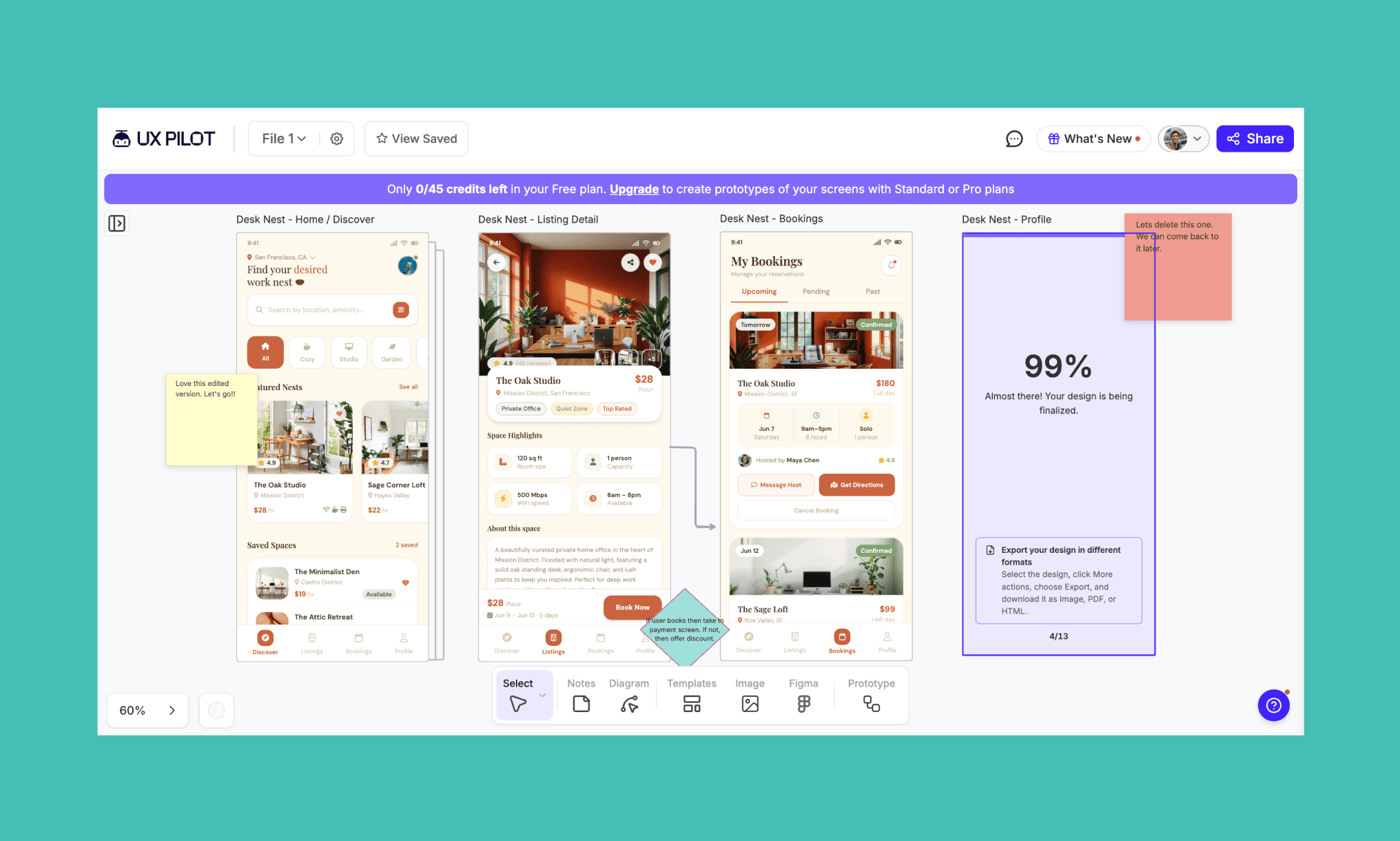
Some additional features of UXpilot that I tested and liked were:
The entire team can add notes on the UI screens with their suggestion/opinion
PMs can include key flow chat shapes to align the team on functionality
Screens can be linked with arrows to show flow and create prototypes
Double-click the screens to check out its interactivity like harmonica and scrolls
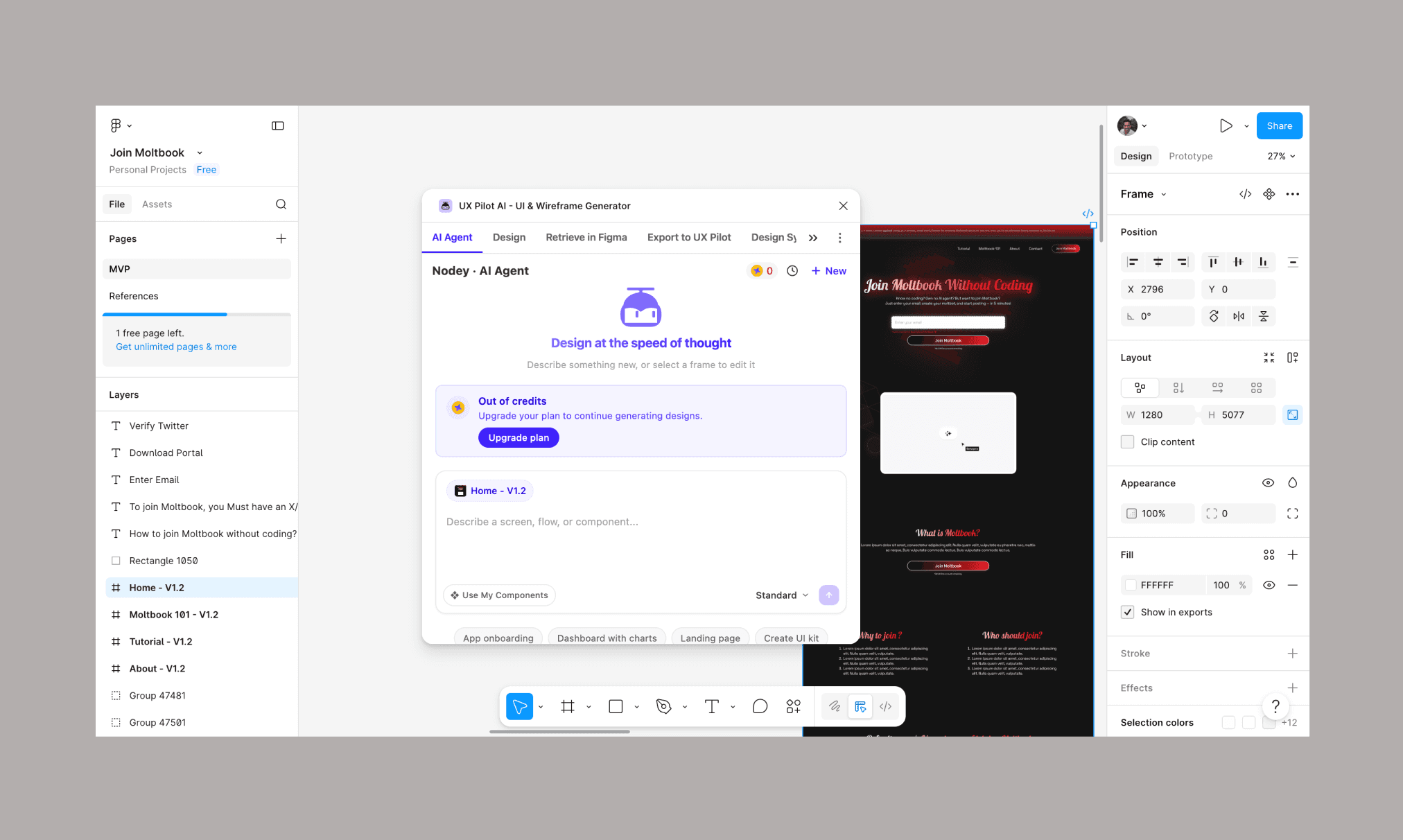
Step 5: Setting up UXPilot Figma plugin (Nodey)
Now, going back to Nodey, the UXPilot Figma plugin, firstly I found its step is glitch-free.
i) You click it open like any Figma plugin, and it asks you which design file you want to open it with. (The design files that are already inside your Figma.)
ii) Click one (can do any, in fact, to start with), and it’ll open a window to sign up on UXPilot. Do it with Gmail or any other way you prefer.
*At this point, it’ll also show a caution that ‘This plugin requires third-party payment for some functionality’. You can ignore it for now. Just ‘Continue’.
iii) On successful sign up, your Figma design file will open with a UXPilot modal. Which is basically a prompt box where you can ask Nodey, the AI UI Agent of UXPilot, to build you a wireframe from scratch or edit in plain English.
Key Features of UXPilot AI
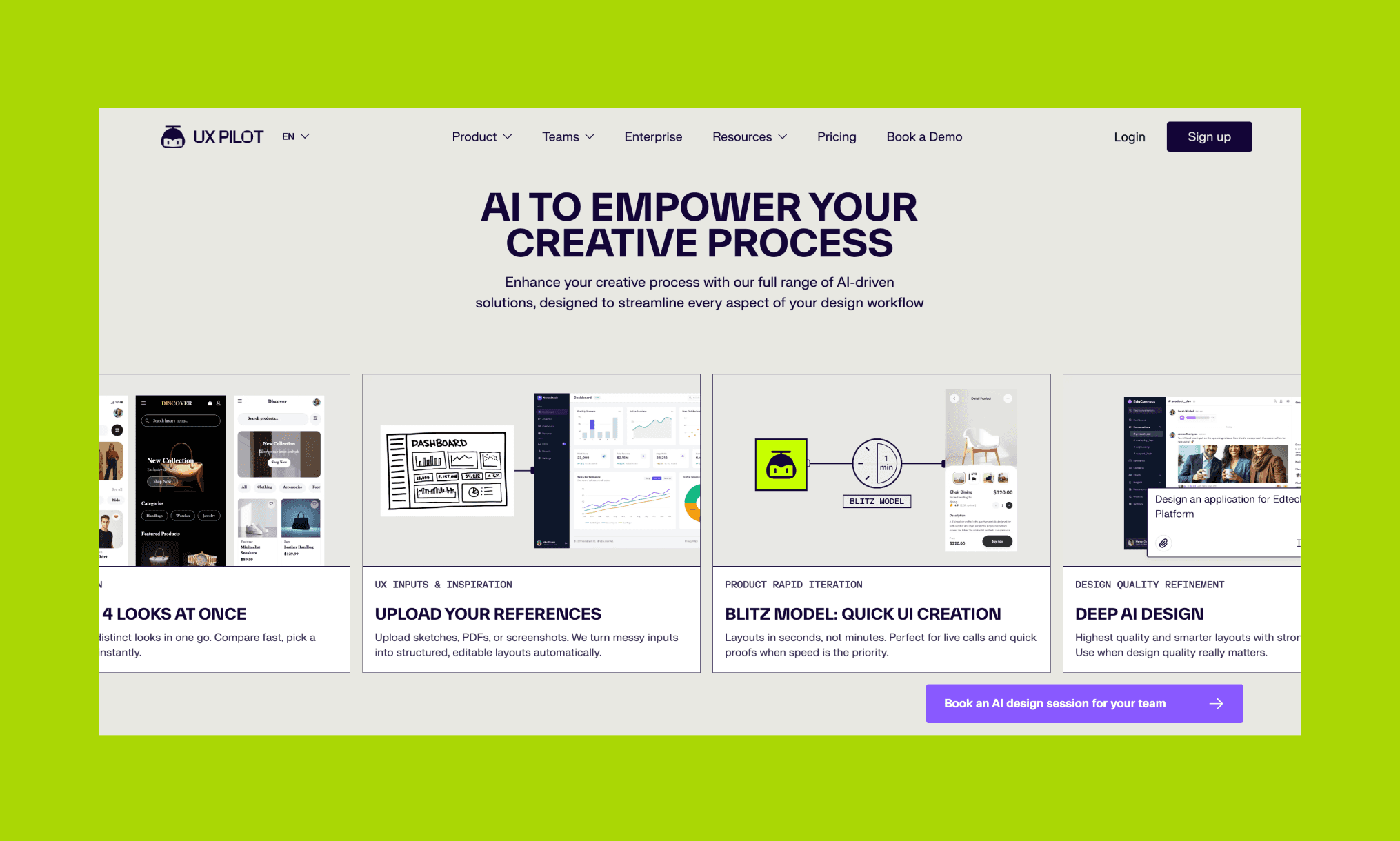
UIs & wireframe generator
Describe a screen or flow in plain text and UXPilot generates structured wireframes or hi-fi UI for mobile and desktop as requested.
Interactive prototype builder
Link screens with arrows to simulate navigation and interactions. Teams can click through the flow and double-click screens to test scrolls and accordions.
Flowchart generator
Describe a workflow or decision process in plain text and UXPilot maps it into a structured, editable flowchart.
Website cloning AI
Upload a screenshot or paste a URL to recreate the layout as an editable design. Useful for referencing inspirational UIs or reproducing a visual direction quickly.
Figma AI design agent (Nodey)
A Figma plugin that brings UXPilot's AI directly into your existing design files. Prompt it to generate wireframes or edit components in plain English.
Design-to-code
Exports your finished UI screens as clean HTML/CSS, or React/Tailwind code. Not production-grade, but clean enough to give developers a solid structural starting point.
Predictive heatmaps
Simulates where users are likely to focus on a screen with a built-in UX research AI. Helps validate layout decisions early in the design process.
Pricing Plans of UXPilot
UXpilot Free Trial
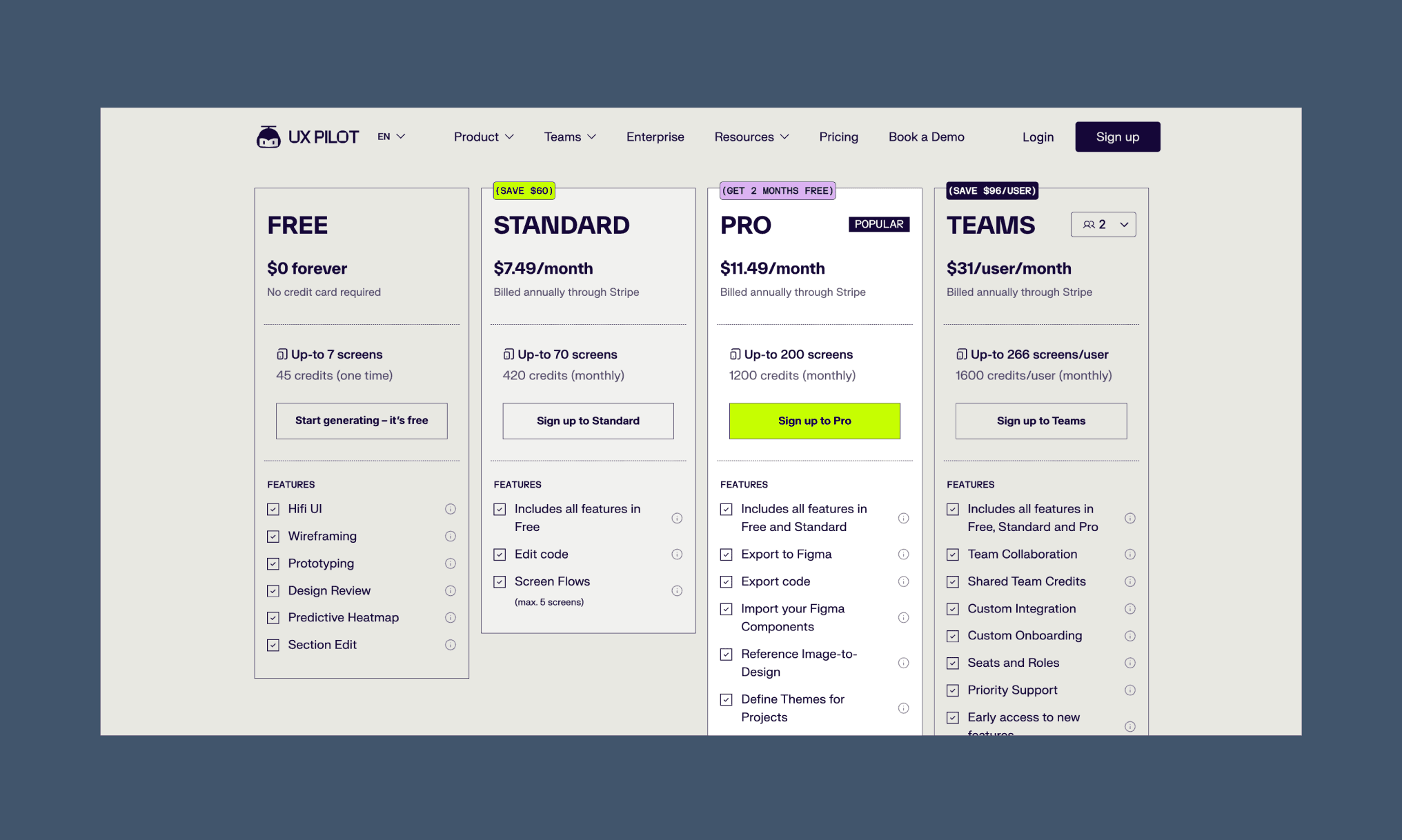
UXPilot has a freemium pricing model. And you can start its Free plan, without a credit card. However, the free credits are allocated only for one-time; don’t refill monthly (unlike how UXPilot’s alternative Banani does).
What you get for free in UXPilot
45 credits (one time, not recurring)
Up to 7 screen generations
Hi-fi UI, wireframing, prototyping
Predictive heatmap and design review
My Miro Free Account Experience >
UXPilot Paid Plans
UXPilot has 3 categories of paid plans for individuals and teams: Standard, Pro, and Teams.
Plan | Price (annual) | AI Credits | Key Features |
Standard | $7.49/month | 420/month | Edit code, Screen Flows (max. 5) |
Pro | $11.49/month | 1,200/month | Figma export, code export, import Figma components, reference image-to-design, define themes |
Teams | $31/user/month | 1,600/user/month | Team collaboration, shared credits, custom integration, seats & roles, priority support |
*Note: The monthly billing of UXpilot is ~25% costlier across each paid plan.
UXPilot Enterprise Plan
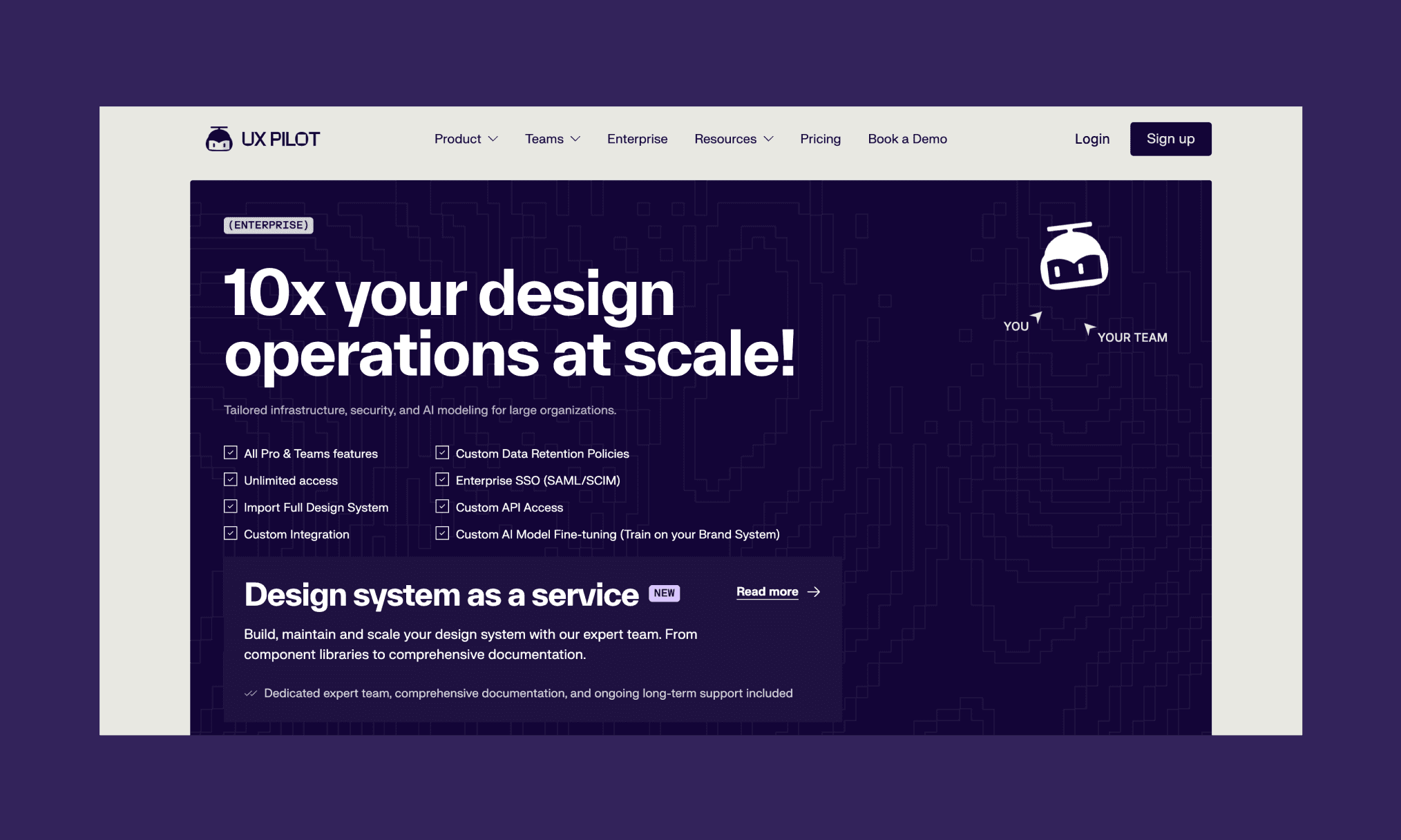
For large-scale businesses working on high-volume design projects, UXPilot offers a custom solution at negotiated pricing under its Enterprise Plan. On top of everything in the Pro and Teams plans, you get:
Full design system import
Enterprise SSO (SAML/SCIM)
Custom data retention policies
Custom API access
AI model fine-tuning on your brand system
Lovable Pricing & Credits Explained >
Pros & Cons of UXPilot AI
Pros | Cons |
Generates structured wireframes and hi-fi UI from a single prompt | Onboarding is modal-heavy; Nodey promotions and tooltips bombard you on entry |
Manual edits are free; no credits consumed for copy, icon, or image swaps | Credit consumption is high. Each screen generation can cost ~15-20 credits. |
Figma plugin (Nodey) works directly inside your existing design files | Figma export requires the paid plugin. No direct export from the web app |
Version history saved automatically; changes can be recalled in a click | Multi-screen flows can produce inconsistent UI styles between screens |
Prototype flows, notes, and team comments all on the same canvas | Support response times flagged as slow across multiple Trustpilot reviews |
Predictive heatmaps and design review built in, not a separate tool. |
What do customers like about UXPilot?
Most praise of UXpilot, in my experience and as per Reddit and other online communities, centres on how fast it moves you from idea to something usable. Designers and non-designers appreciate the wireframe quality and the Figma integration. Also, I loved the manual editing experience; it’s intuitive and economical as it does not burn credits.
What are the biggest complaints about UXPilot?
In my view, credit-guzzling AI and consistency are the two biggest pain points of using UXpilot. Several Trustpilot reviewers have also flagged designs disappearing or changing overnight, and multiple users noted that support can be slow to respond.
Pros & Cons of Claude Design >
Alternatives to UXPilot
Banani vs UXPilot
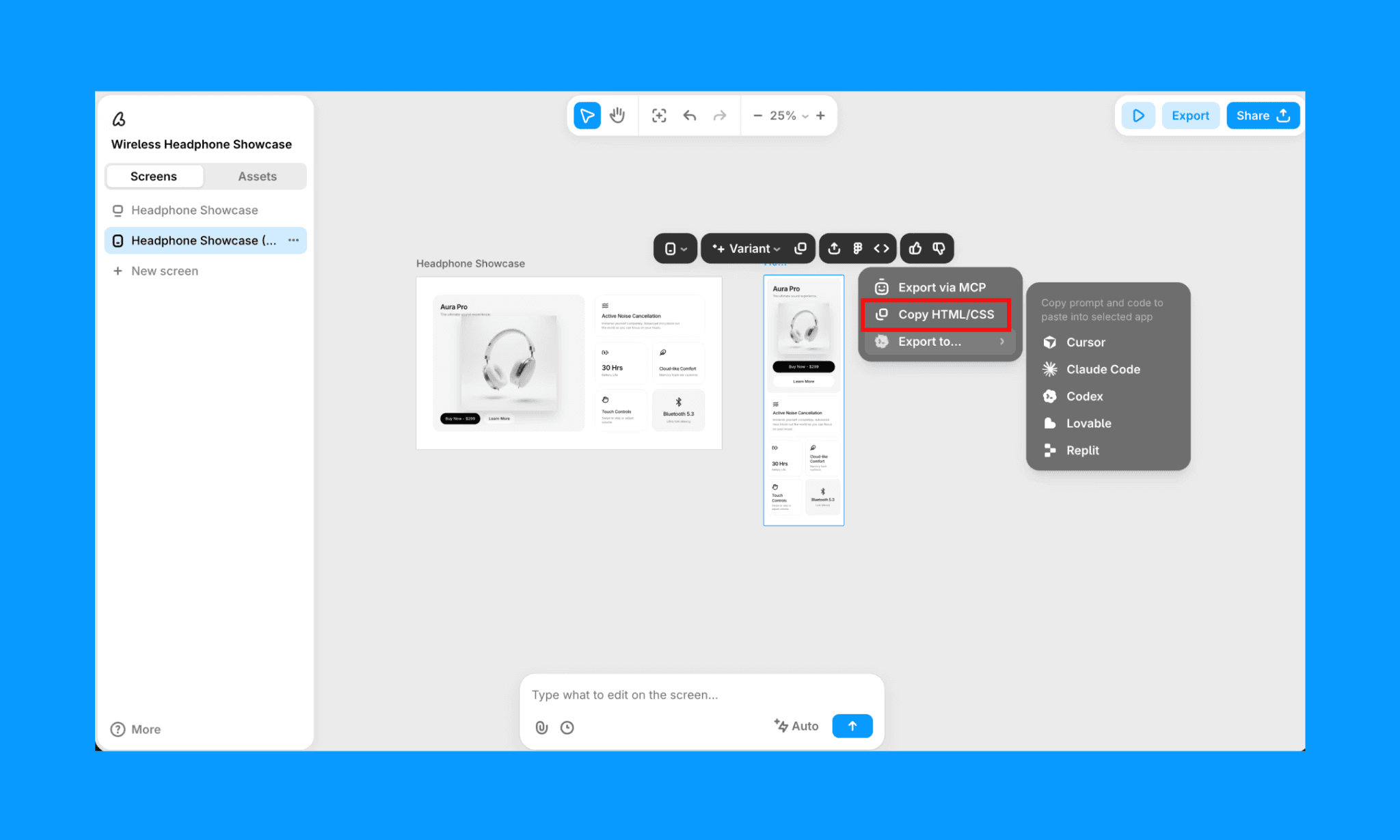
Banani AI is the best alternative to UXpilot with a similar set of features, at a more affordable rate. It can generate wireframes and high-fidelity UI flows from simple prompts or images. It's especially strong in multi-screen design.
Unlike UX Pilot, it offers a generous free trial with ~170 screen generation/edits per month.
Uizard vs UXPilot
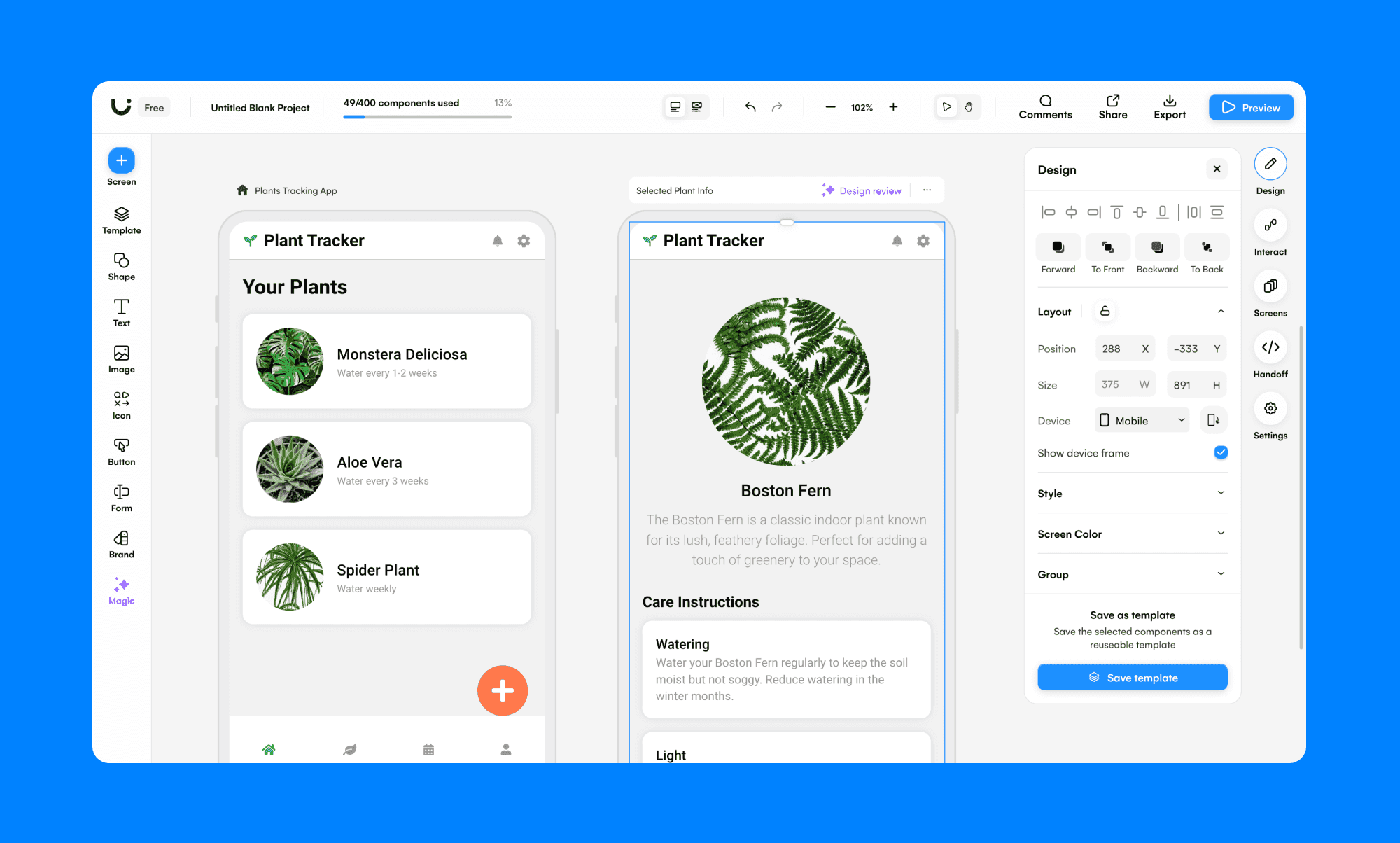
Uizard gives more flexibility in how you can customize designs with manual editing features, more advanced hand-off, and prototyping. On the other hand, UXPilot works pretty well when you use Figma, and needs some additional boost on the side of AI features.
Relume vs UXPilot
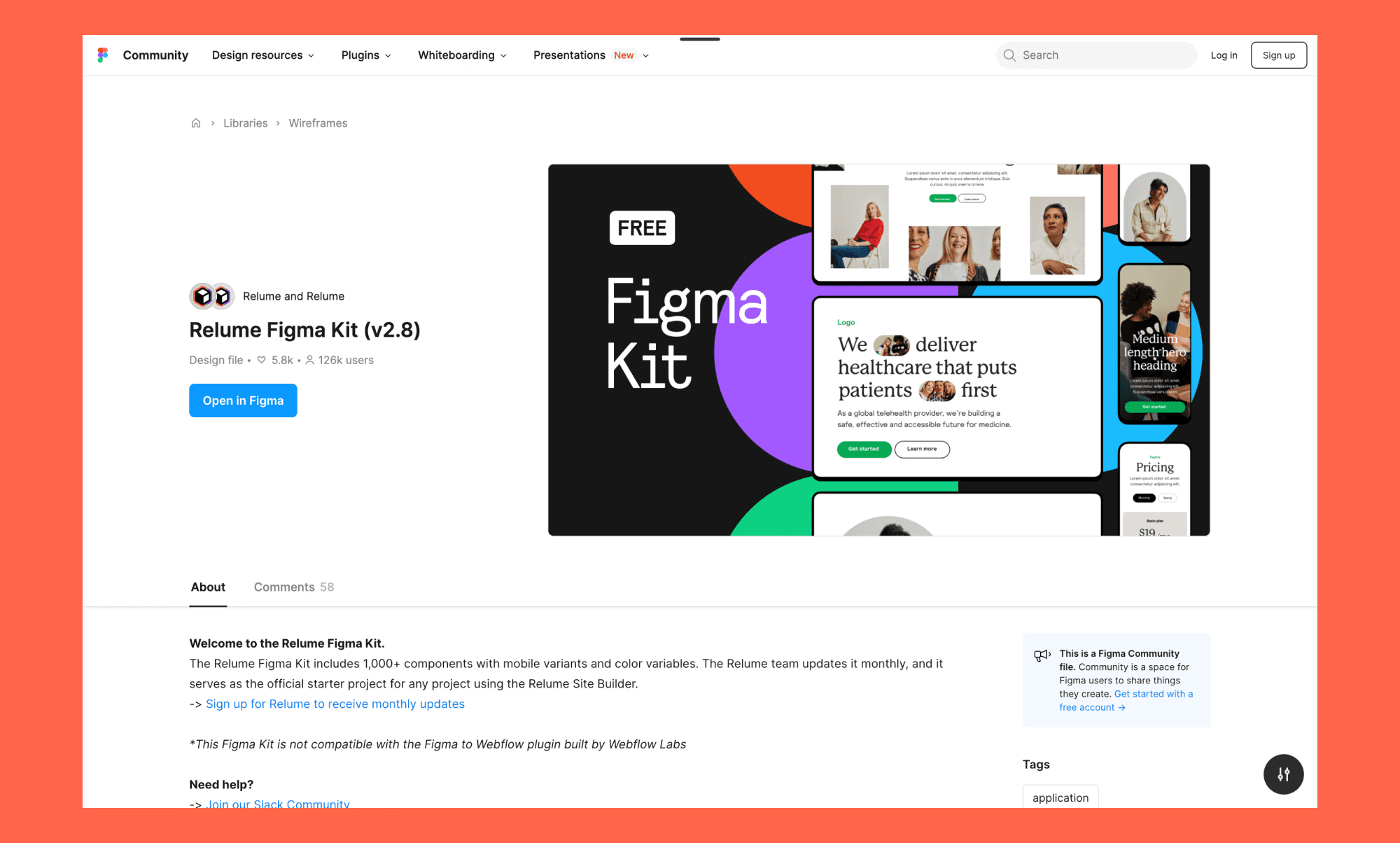
Relume is a great alternative if you mostly work on landing pages and websites, not functional apps. It generates landing page wireframes using smart layout blocks and content. However, it doesn't offer research tools or UX feedback like UXPilot, but it's fast for simple web projects.
Stitch vs UXpilot
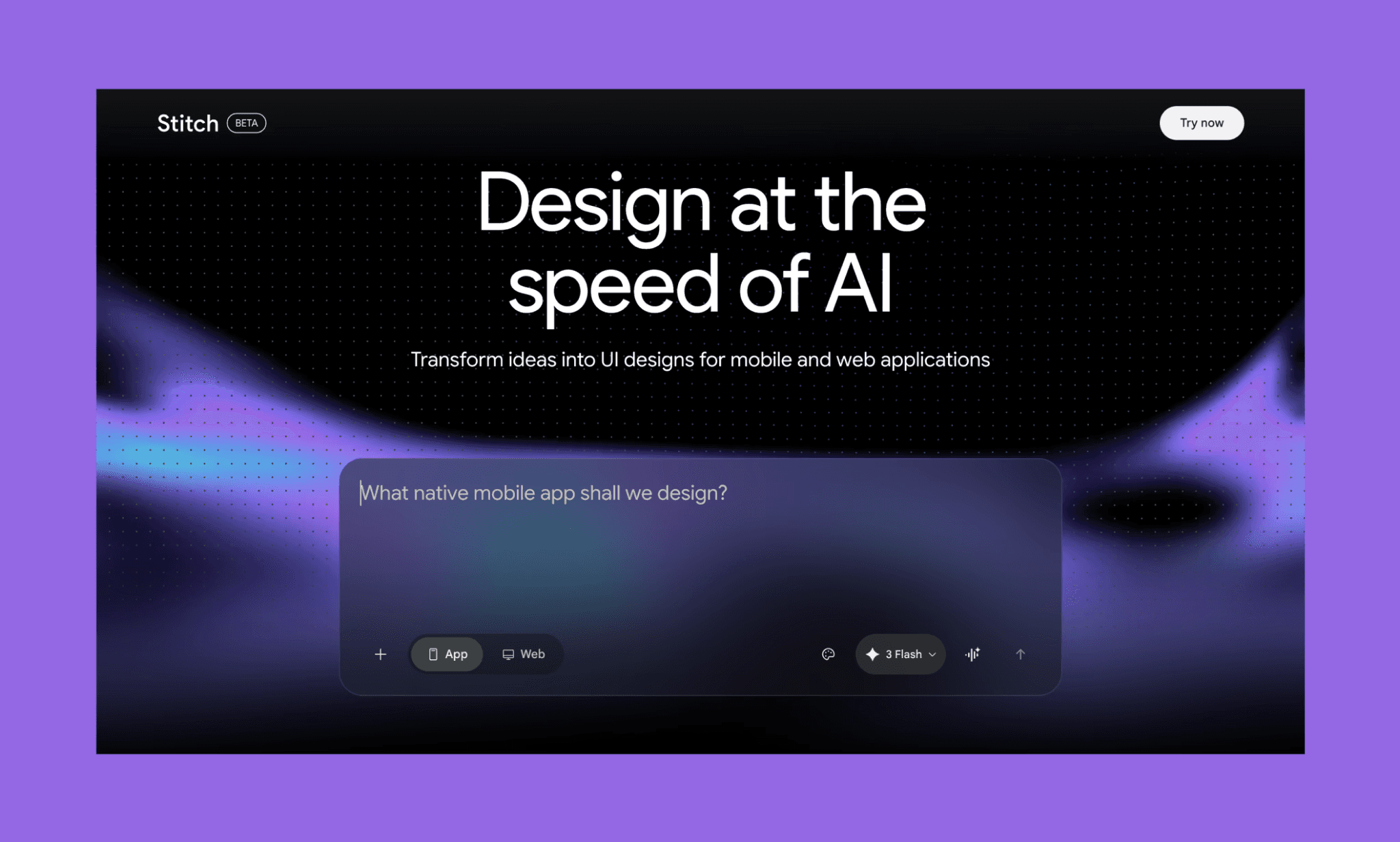
Stitch (formerly known as Galileo AI) is an AI design tool from Google that generates text-to-UI and design systems in the same canvas. It’s in beta, and is totally free. In comparison, I’ve found UXPilot to be more functional and geared toward teams who want designs they can test and build from.
Hidden Costs in Google Stitch >
v0 by Vercel vs UXPilot
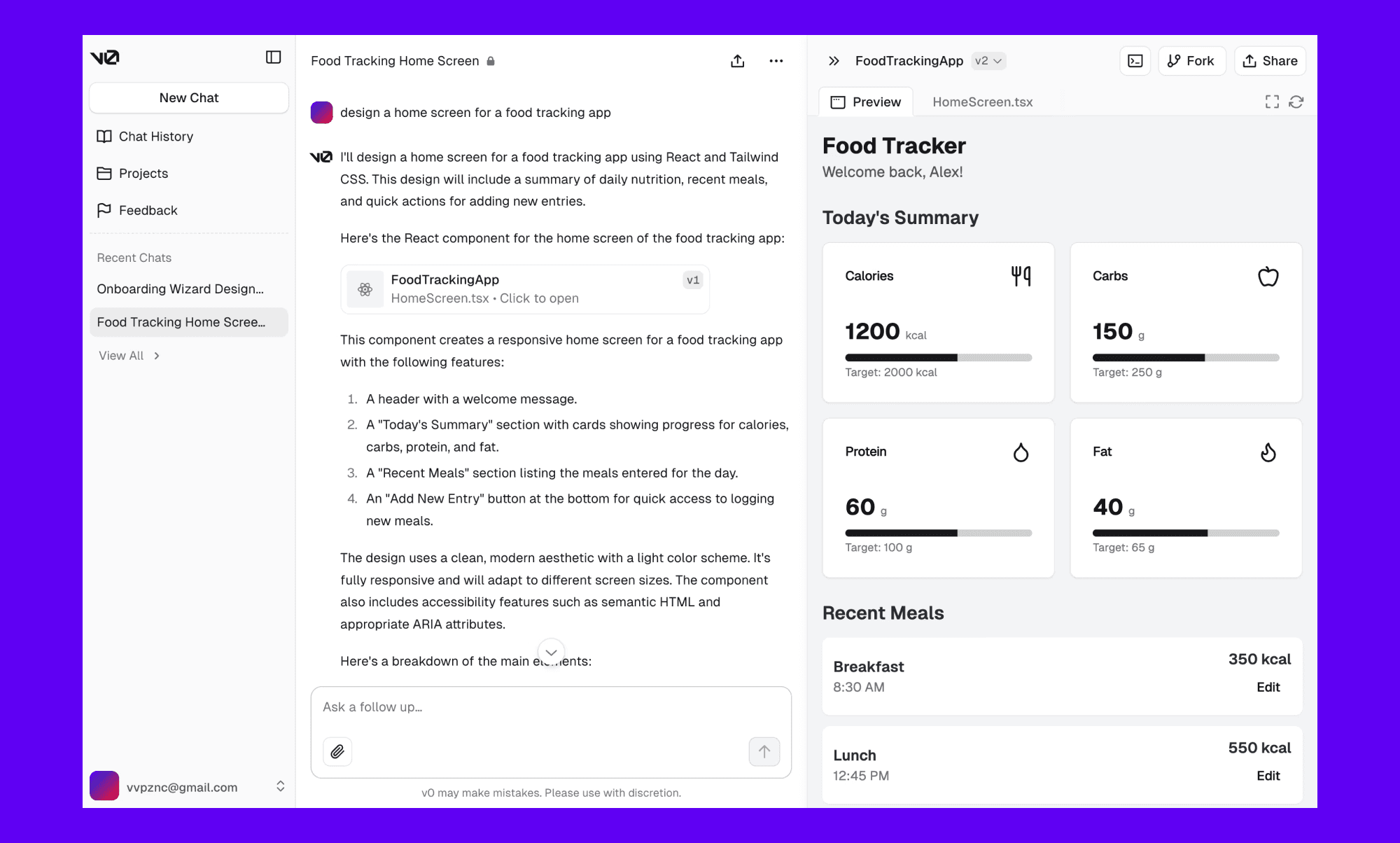
v0 is great for developers who want clean React code as a final output in addition to designs. It uses shadcn/ui for design generation, making it easy to implement in existing projects. UXPilot covers more UI/UX angles, but v0 will be better if your priority is building rather than planning.
How does UXPilot compare to other AI design tools?
UXPilot sits in a middle ground of UI/UX with an edge of combining UI generation, heatmaps, and design review in one place; which most of its alternatives don't offer together. But judging beyond design quality and user experience, where it has matching fights, it is certainly more expensive and less consistent than AI UI tools like Banani.
Top Alternatives to UXPilot Compared >
Verdict: Is UXPilot worth it?
From my hands-on review of UXPilot, I got the impression that it tries to serve everyone in the product development process: PMs, designers, and developers. And, to its credit, it gets a lot right: solid AI-generated layouts, built-in UX feedback tools, Figma import-export, and a tight design-to-code workflow. But it stumbles on consistency, and the free tier doesn’t give you enough to peek into (and build trust for) the premium features.
If you want similar AI-powered UI/UX features with Figma integrations, and MCP start with Banani. It’s also faster, more affordable, and rapidly evolving as the go-to vibe design AI of the industry.
FAQs on UXPilot AI
How long does it take to get started with UXPilot?
Signing up on UXPilot is as fast as it gets, with no credit card required. From there on, you can directly use the canvas to generate UI with AI; which takes around ~5 minutes per screen.
Is UXPilot suitable for large teams and organizations?
Yes, for large teams and Enterprises, UXPilot has suitable plans. Teams get shared credits, seats & roles, and collaboration features. Enterprise adds SSO, custom API access, and AI model fine-tuning for brand consistency at scale.
How do you use UXPilot in Figma?
To use UXPilot in Figma, they have a plugin called Nodey. You can install their Figma plugin from the public Figma Community. Then, connect it to your UXPilot account, and prompt it to generate wireframes or edit existing components directly inside your Figma file.
Your UXPilot paid plan credits work across both the web app and the plugin.
What is the difference between Galileo and UXPilot?
Galileo AI was rebranded as Google Stitch and is now in beta, free, and focused on text-to-UI with design systems. UXPilot, on the other hand, is a more complete product design platform with heatmaps, prototyping, flowcharts, and Figma integration. Also, the latter is not free; has a freemium pricing.
Which is the cheapest and best alternative to UXPilot?
Banani, hands down. It offers similar AI UI generation, Figma export, and MCP/code handoff. That too with a free plan that refreshes monthly (~170 generations/edits), unlike UXPilot's one-time 45 credits. Banani’s paid plans are also more affordable.
References
[1] https://uxpilot.ai/
[2] https://www.trustpilot.com/review/uxpilot.ai
[3] https://www.g2.com/sellers/ux-pilot-ai
[4] https://www.capterra.com/p/10032763/UX-Pilot/reviews/


